Izinkan atau hapus akses dukungan Notion
Pelajari cara memberikan atau mencabut akses saat Anda memerlukan bantuan dari tim dukungan Notion.
Buka Pertanyaan UmumDukungan Notion hanya dapat mengakses data akun atau ruang kerja Anda untuk memecahkan masalah atau memulihkan konten setelah Anda menghubungi dukungan dan memberikan akses. Ada dua pengaturan terpisah yang mengontrol apa yang dapat dilakukan dukungan Notion. Di bawah ini, Anda akan menemukan Instruksi untuk masing-masing pengaturan:
Izinkan Notion mengakses data ruang kerja Anda.
Izinkan dukungan Notion bertindak sebagai Anda di Notion.
Kedua pengaturan ini bekerja secara mandiri. Mengaktifkan salah satu tidak akan mengaktifkan yang lainnya. Bergantung pada masalah Anda, dukungan mungkin meminta Anda untuk mengaktifkan salah satu atau keduanya.
Pelajari lebih lanjut tentang praktik keamanan Notion, dan bagaimana data Anda disimpan di server kami →
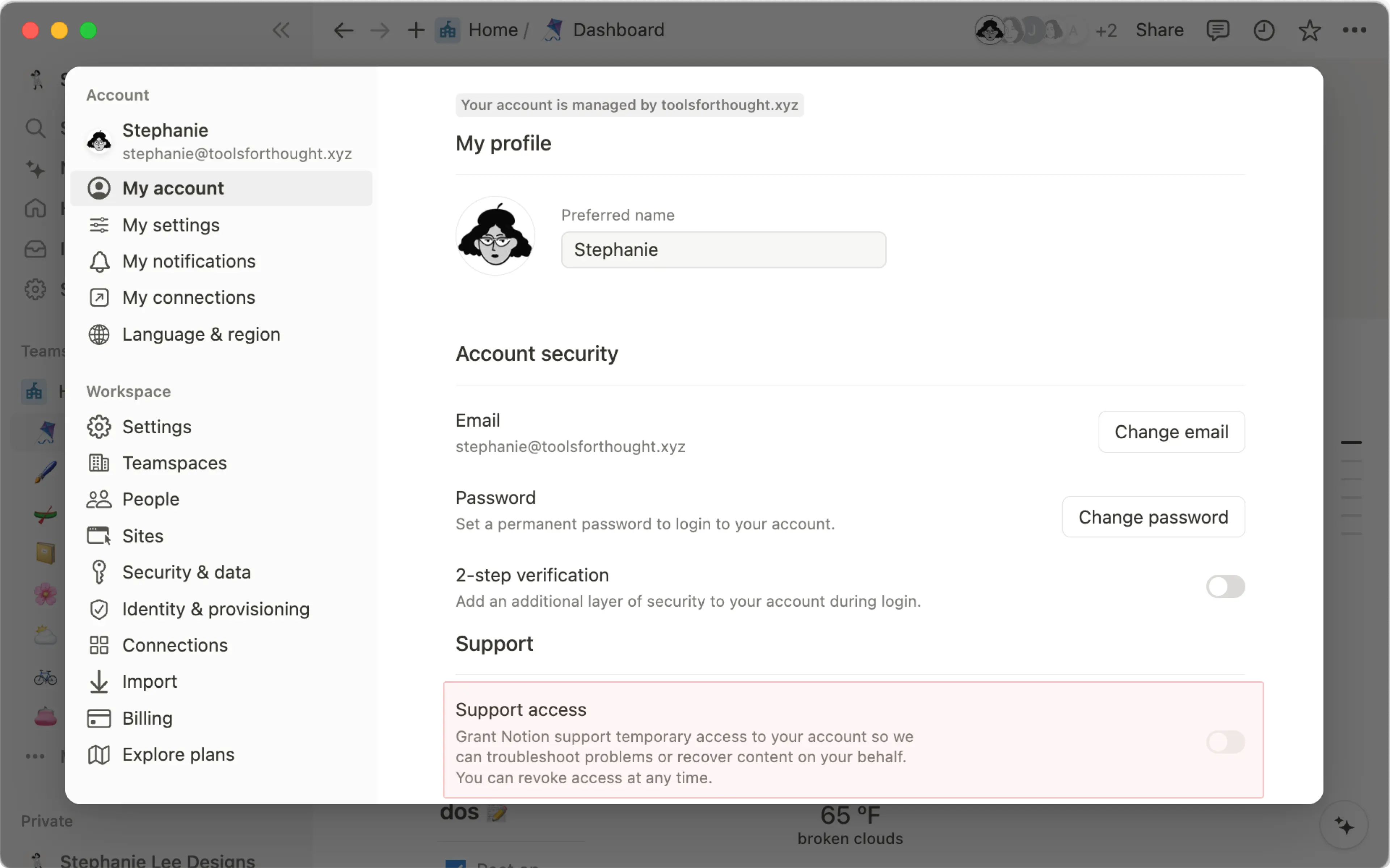
Pengaturan ini ditujukan untuk akun pribadi Anda. Pengaturan ini memungkinkan dukungan Notion bertindak sebagai Anda untuk memecahkan masalah yang Anda laporkan.
Saat mengobrol dengan dukungan Notion melalui email atau obrolan dalam aplikasi, Anda mungkin diminta memberikan persetujuan untuk mengakses akun Anda, guna membantu pemecahan masalah atau pemulihan. Untuk mengizinkan akses akun:
Buka
Pengaturandi bilah sisi Anda →{nama Anda}.Di bawah
Dukungan, nyalakan TombolAkses dukungan.
Cabut akses akun
Setelah Anda memberikan akses, tim dukungan Notion akan memiliki izin untuk mengakses konten Anda selama 28 hari, atau sampai Anda mencabut akses ini. Jangka waktu ini akan terlihat di dalam aplikasi. Untuk mencabut akses akun kapan saja:
Buka
Pengaturandi bilah sisi Anda →{nama Anda}.Di bawah
Dukungan, matikan TombolAkses dukungan.
Untuk mengizinkan atau mencabut akses dukungan di Notion untuk seluler:
Buka Notion di seluler dan ketuk
•••.Ketuk
Pengaturan.Hidupkan atau matikan Tombol
Akses dukungan.
Admin dan pemilik ruang kerja dapat memutuskan apakah Notion dapat mengakses ruang kerja untuk dukungan dan pemecahan masalah. Pengaturan ini terpisah dari pengaturan pribadi di atas. Pengaturan pribadi memungkinkan dukungan Notion bertindak sebagai Anda. Pengaturan ruang kerja memungkinkan dukungan Notion mengakses ruang kerja untuk membantu menyelesaikan masalah.
Mengaktifkan akses ruang kerja tidak mengizinkan dukungan Notion bertindak sebagai orang tertentu. Jika dukungan perlu bertindak sebagai orang tertentu, orang tersebut juga perlu mengaktifkan akses akun.
Buka
Pengaturandi bilah sisi Anda →Keamanan.Tekan Tombol
Akses dukungan.
Akses berakhir dengan sendirinya setelah 28 hari secara default. Anda dapat menghidupkannya kembali kapan saja.
Buka
Pengaturandi bilah sisi Anda →Keamanan.Tekan Tombol
Akses dukunganuntuk mematikan.
Setiap kali akses data Ruang Kerja diberikan, diubah, atau berakhir, hal tersebut dicatat dalam log audit.
Jika ruang kerja Anda merupakan bagian dari organisasi Enterprise, admin organisasi dapat mengelola setelan ini dari setelan organisasi Anda. Mereka dapat:
Tetapkan satu kebijakan untuk setiap ruang kerja di organisasi.
Tetapkan kebijakan untuk setiap ruang kerja satu per satu.
Untuk mengelola setelan ini:
Pilih nama organisasi Anda di bilah sisi, lalu pilih
Kelola organisasi.Di setelan organisasi Anda, pilih
Keamanan.Cari dan pilih
Persetujuan akses dukungan ruang kerja.Pilih setelan untuk seluruh organisasi, atau pilih setelan untuk setiap ruang kerja dalam daftar.
Setiap ruang kerja dapat diatur ke salah satu dari:
Diaktifkan: Dukungan Notion dapat mengakses data ruang kerja tersebut. Ruang kerja tidak dapat Nonaktifkan setelan ini.Dinonaktifkan: Dukungan Notion tidak dapat mengakses data ruang kerja tersebut. Ruang kerja tidak dapat menghidupkan ini.
Pilihan organisasi selalu diutamakan. Jika organisasi diatur ke Diaktifkan atau Dinonaktifkan, pilihan tersebut berlaku untuk setiap ruang kerja, terlepas dari bagaimana setiap ruang kerja diatur. Untuk membiarkan setiap ruang kerja memutuskan sendiri, atur organisasi ke Dikelola ruang kerja.
Saat organisasi Nonaktifkan setelan ini, Tombol ruang kerja dikunci dan akses tetap nonaktif. Jika organisasi mengaktifkannya kembali nanti, pilihan ruang kerja sebelumnya akan dipulihkan.
Organisasi dapat membatasi anggota agar tidak mengaktifkan akses dukungan untuk akun mereka sendiri dengan pengaturan Izinkan pengguna memberikan akses dukungan ke akun. Meskipun pengaturan ini nonaktif, pemilik organisasi tetap dapat mengaktifkan akses dukungan untuk orang tertentu. Untuk melakukannya:
Pilih nama organisasi Anda di bilah sisi, lalu pilih
Kelola organisasi.Di pengaturan organisasi Anda, pilih
Orang.Cari dan pilih
Kelola anggota.Cari dan pilih orang yang memerlukan bantuan dari dukungan Notion.
Pada tab
Umum, pilih menu drop-downIzinkan akses dukunganuntuk mengaktifkanAkses dukunganuntuk akun mereka.
Seperti semua akses dukungan, ini hanya memungkinkan dukungan Notion membantu masalah yang telah dilaporkan orang tersebut, dan dapat dinonaktifkan kapan saja.
Pertanyaan Umum
Jika pengaturan ini aktif, apa yang dapat dilakukan Notion?
Jika pengaturan ini aktif, apa yang dapat dilakukan Notion?
Pengaturan ini memungkinkan dukungan Notion mengakses data ruang kerja Anda untuk membantu Anda, seperti memperbaiki halaman atau memulihkan konten yang Anda tanyakan. Notion tidak akan melihat atau mengubah apa pun tanpa izin Anda. Sebelum dukungan melihat data Anda atau memproses perbaikan, mereka akan meminta Anda untuk menyetujui tindakan spesifik tersebut terlebih dahulu.
Saya tidak ingat pernah mengaktifkan pengaturan ini. Mengapa pengaturan ini aktif?
Saya tidak ingat pernah mengaktifkan pengaturan ini. Mengapa pengaturan ini aktif?
Pengaturan ini dulunya terikat pada akses dukungan pribadi setiap pemilik ruang kerja. Jika pemilik mana pun mengaktifkan akses dukungan, dukungan Notion dapat membantu ruang kerja tersebut.
Akses ruang kerja kini menjadi pengaturannya sendiri. Jika pemilik sudah mengaktifkan akses dukungan, pengaturan ruang kerja diaktifkan agar sesuai, dengan tanggal berakhir yang sama. Tidak ada hal baru yang dibagikan kepada Notion. Anda dapat Nonaktifkan pengaturan tersebut kapan saja di Pengaturan → Keamanan.
Siapa yang dapat mengaktifkan akses ruang kerja?
Siapa yang dapat mengaktifkan akses ruang kerja?
Admin dan pemilik ruang kerja. Dalam organisasi Enterprise, admin organisasi juga dapat mengelolanya dari konsol organisasi.
Apakah akses akun tetap aktif selamanya?
Apakah akses akun tetap aktif selamanya?
Tidak. Akses akun berakhir dengan sendirinya setelah 28 hari secara default. Anda dapat mengaktifkannya kembali kapan pun Anda perlu.
Bisakah pemilik organisasi mengaktifkan akses dukungan hanya untuk satu orang?
Bisakah pemilik organisasi mengaktifkan akses dukungan hanya untuk satu orang?
Ya. Pemilik organisasi dapat mengaktifkan akses dukungan untuk akun satu orang dari konsol organisasi. Ini berfungsi meskipun anggota tidak dapat mengaktifkannya sendiri.
Jika akses ruang kerja aktif, bisakah dukungan Notion juga bertindak sebagai saya?
Jika akses ruang kerja aktif, bisakah dukungan Notion juga bertindak sebagai saya?
Tidak. Akses ruang kerja dan akses akun terpisah. Masing-masing harus diaktifkan sendiri.