Notion beta program
Get early access to new features before anyone else, and help shape the future of Notion! Compared to the standard apps, you’ll receive bug fixes and updates much quicker.
How to sign up
Like many other apps, Notion’s iOS beta is distributed through TestFlight.
Go here to install the TestFlight app on your device if you don’t have it already.
Once the TestFlight app is downloaded to your device, click on this link to download the Notion iOS beta app. If you already have the standard Notion app installed, the beta version will replace it.
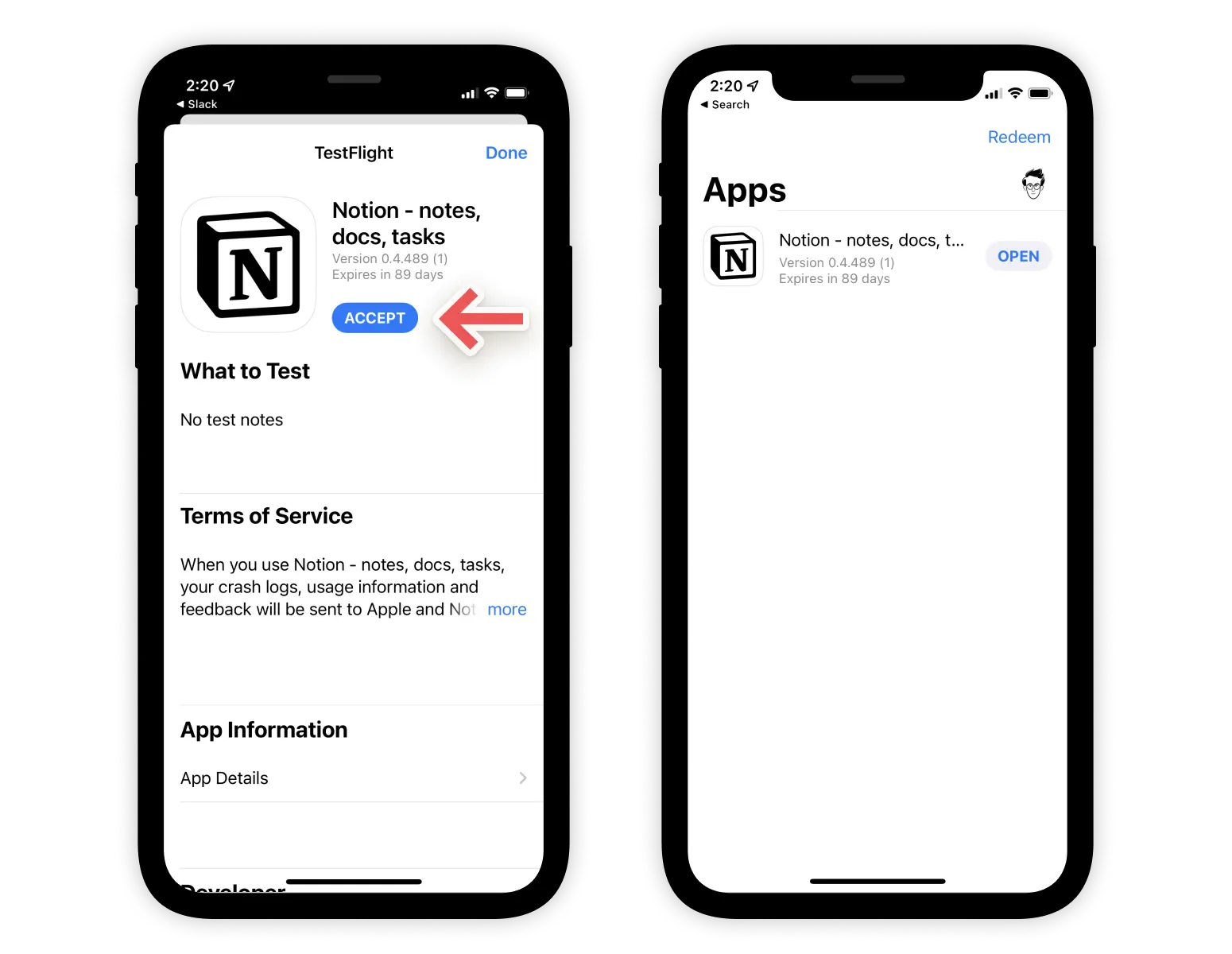

Note: Apple only allows up to 10,000 people to sign up for a beta app through TestFlight. First come, first served!
How to submit feedback
Feedback is a gift! Help Notion’s engineering team make our mobile apps even better by sending bug reports and feedback:
In the Notion Beta app, press the power button and volume up button at the same time to take a screenshot. Tap the “Share” button at the top right, then scroll down to see the “Share Beta Feedback” button in the share sheet.
In the TestFlight app, tap on “Notion Beta,” then tap the “Send Beta Feedback” button.
How to leave the beta
In the TestFlight app, tap on “Notion Beta,” then scroll to the bottom of the page. Tap the “Stop testing” button to be removed from the beta.
How to sign up
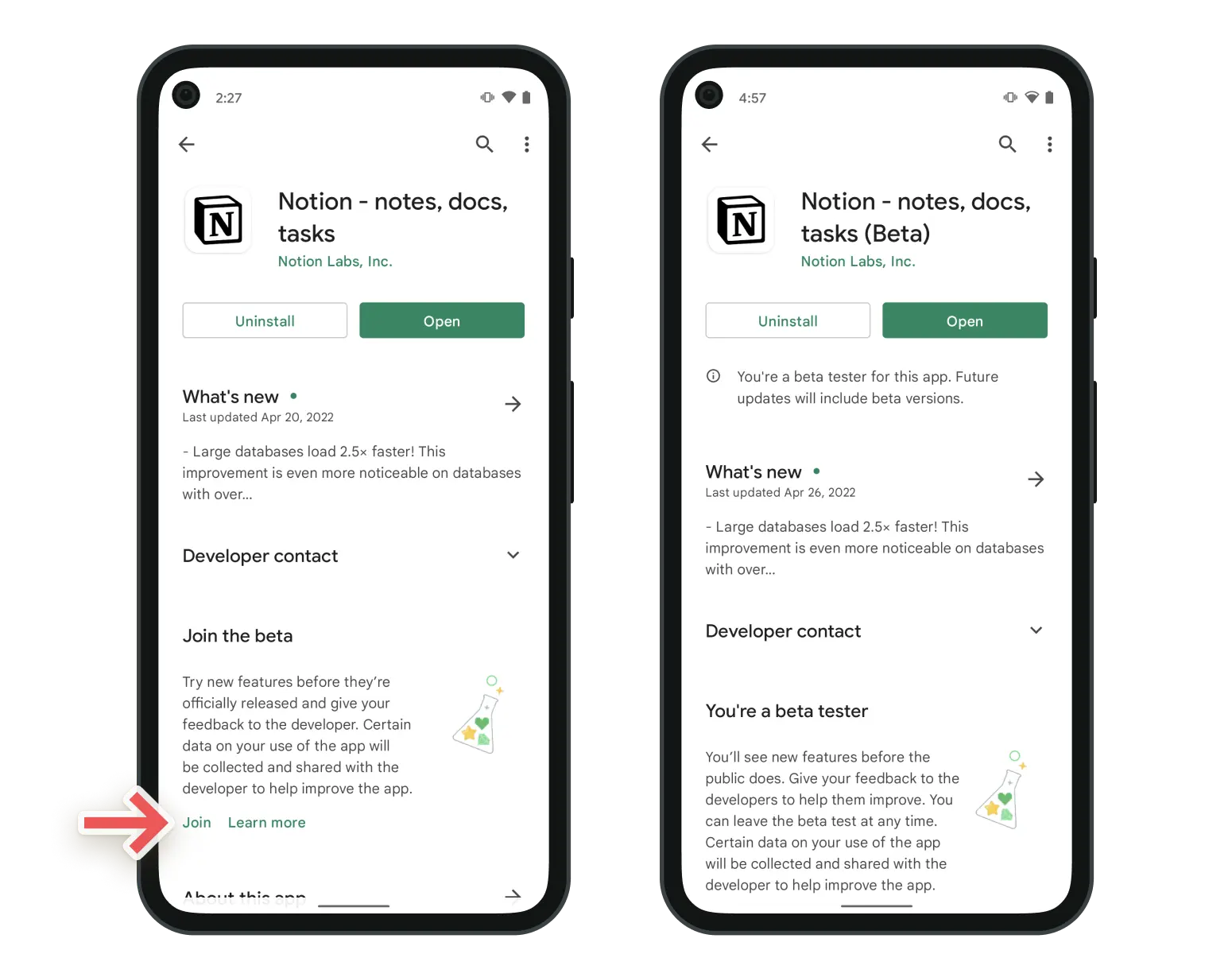
Scroll to the bottom of the page until you see the section titled “Join the beta.”
Then tap the “Join” button — that’s it!
How to submit feedback
Feedback is a gift! Help Notion’s engineering team make our mobile apps even better by sending bug reports and feedback:
Open the Play Store.
At the top right, tap your profile icon.
Tap “Manage apps & device”.
Tap “Ratings & reviews”.
Scroll until you find Notion in the list, then tap “Write feedback”.
How to leave the beta
Go to Notion’s app listing in the Google Play Store here. Scroll to the bottom of the page until you see the section titled “You’re a beta tester.” Tap the “Leave” button to be removed from the beta.
The desktop beta is for the Notion app on Mac and Windows. It lets you try new desktop features early, starting with a new way tabs work. Joining is your choice, and you can leave whenever you want. Notion restarts when you join or leave.
How to sign up
The first time it's available, click
Try Desktop Betain the tab bar, then chooseRestart and try now.You can also join any time from
Settings→Preferences→Desktop beta.
How to submit feedback
Click the Beta button (the bug icon) in the tab bar, then choose Report a bug or Send feedback. This opens an email that's already filled in with your app version and system details.
How to leave the beta
Click the Beta button in the tab bar and choose Leave beta, or turn off Desktop beta in Settings → Preferences. Notion restarts and your classic tabs come back.
To learn what changes for your windows and tabs, see our Notion desktop beta: new tabs article.
Participation is entirely voluntary. Before you sign up, please keep in mind that by accessing and using our beta apps, you are acknowledging and accepting any risks from using an app that has not yet been released to the general public. For example, beta apps can contain more bugs than our publicly available products.
Your decision to participate in beta testing is also subject to any applicable Beta Services terms in your agreements with us. If you’re using the mobile app to access your company’s Notion workspace, you may need to check with your IT department before installing beta software.